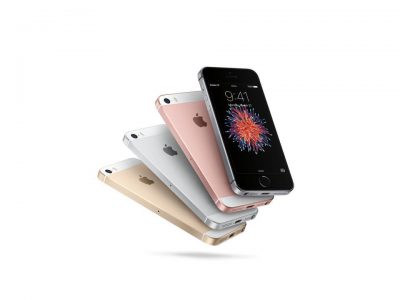
Whether it’s an Android phone or an iPhone, losing a phone is sad, but it’s not a new thing. Finding a lost phone is a difficult process. However, due to the technology of the current phones, it is not necessary to get the speed to find the lost phone.
Let’s find out how to find a lost iPhone and how to ensure the security of the phone. Also, if you find your iPhone easily lost, you can find out about it.
“Find My” is a tool for all Apple devices. This app helps to find lost or stolen Apple devices easily. Only if you have this feature enabled on your lost iPhone can you find the lost or stolen iPhone.
The good thing is that the Find My feature is able to find the location of your iPhone. “Find My” tool pings the last location before the battery is low in the phone. As a result, even if the lost iPhone or any other Apple device is turned off, the idea of its final location can be found.
So to find a lost iPhone, it is very important to have the “Find My iPhone” feature turned on. To turn on the Find My iPhone feature, enter the iPhone’s settings and tap on your name. Then
Tap Find My and then tap Find My iPhone. Turn on the inner options. The phone will automatically save the location to the Apple account if the battery is low, so that the last location of the iPhone will be known even if it is not charged.

If you have an Apple Watch and you can set the Find My feature, it will alert you about your iPhone. Apple Watch Alert can be set for any device or item besides phone.
When the iPhone has a low battery before it runs out of charge, its location is pinged. Which gives an idea about the last location of the iPhone. When the phone is turned on and connected to the Internet or not, it is still possible to find the current location of the iPhone with the help of nearby Apple devices.
How to find a lost iPhone using Find My App and iCloud?
If you have an iPad or Mac, or already have the location sharing option enabled in the Family Sharing group, you can easily find lost iPhone for group members using Apple Device. To find a lost iPhone using another Apple device, enter the iPhone’s Find My app, tap the Devices tab. You will see a map with a list of devices with. Find My service running Find out the lost iPhone and find out its location.
You can find the lost iPhone by accessing iCloud.com from your computer or any browser. Log in to icloud.com from any browser to find the lost iPhone using iCloud.
Login to the lost device by providing the login Apple ID and password. Approve login after completing two-factor authorization. Click Find iPhone. Select All Devices at the top and find the lost iPhone from the list. On the map you will see the latest available location of your lost iPhone.
Is your Apple ID logged into multiple iPhones or Apple devices? In that case finding a lost iPhone can be quite easy. You can easily find a lost iPhone if you have an Apple account login for a lost iPhone on another iPhone or Apple device. When you enter the Me tab from the Find My app, you will see the location of your lost phone. If your friend has an iPhone, you can still find a lost one. To find a lost iPhone in this way, enter the Find My App of the phone and enter the Me tab. Scroll down and select Help A Friend. If you are asked to login to iCloud account, select Use Different Apple ID and login to the Apple account that is logged in the lost phone. Find your device from the list of devices to find the lost iPhone. You will see a circle on the screen where your iPhone was last located.
Note that losing or stealing a phone is not the same thing. If your device got stolen, you need to contact the local authorities. It is better to seek legal help without trying to recover on your own. You will also see the last location of your phone saved in the sidebar.
Find My App’s map will show the phone with a colorful home screen, if the lost iPhone is turned on. It will also show the phone’s battery charge. You can go directly to the location where your iPhone is by tapping Directions from the map. If the phone is on again but offline, then tap on the Play Sound option when you reach around the phone which will play a beep sound on the phone which will help to find the phone.
If there is no charge on the iPhone, then swipe to the sidebar and turn on the Notify When Found option. By the time your lost iPhone is turned on and the location of the iPhone is updated. It will notify you every other Apple device. You can remotely lock your Apple device using Lost Mode.
Find My Find without iPhone
If the Find My iPhone feature is not enabled, finding the lost iPhone can be quite a problem. You can view your iPhone’s location history using Google Maps’ timeline feature. Google Maps will be able to provide a complete idea about the location of the phone. However, the Google Maps Location History feature must be turned on, which in most cases is turned on by default.
Enter the google.com/maps/timeline link
Login to Google Account
Select the date on which your iPhone was lost
Check the latest location of iPhone
Now turn on the Find My iPhone feature on your iPhone. It is wise to take all necessary steps before losing your phone.